
Activation and first checks
Check your access, channels and configuration before using the assistant.
What you need
An account enabled for your company, a list of channels to connect, and someone who can approve company information and procedures. Editing solutions requires the appropriate permissions.
Check your solution
- Sign in to the Dashboard and select the correct company.
- Open Solutions and find the chat or email support prepared for your project.
- Select Configure and open Setup. Review the requirements for the connection, environment and procedures.
- Compare the channels and information shown with those agreed during installation.
- Before enabling the channel for customers, complete testing and check how the team is involved.
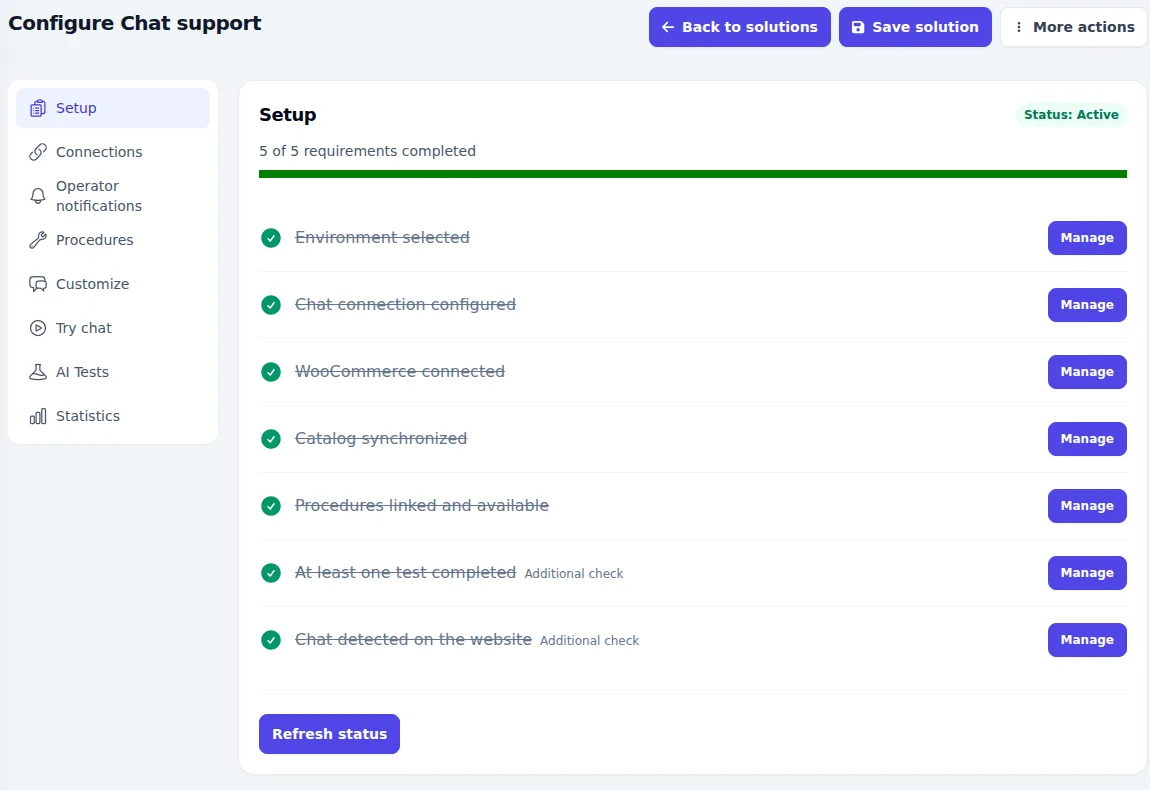
Expected result
You know which solution handles each channel, who can edit it, and which checks remain. Its status matches the agreed activation plan.
If something looks wrong
- The company or Solutions section is missing: ask an administrator to check your access and role.
- A requirement is incomplete: open the section named in Setup or send the details to your installation contact.
- The solution is a draft: complete and save the required configuration before activation.
If installation is already handled through the Managed service, review these checks with your contact. Do not create a second solution to replace a configuration you do not recognise.