
Define your assistant’s procedures
Decide when a procedure applies, which information it can consult and when a human review is needed.
What your company contact prepares
Define the procedure’s goal, covered cases and requests that must go to a person. For example: answer returns questions using approved policies, without authorising exceptions. Editing requires configuration permissions.
Configure a procedure
- Open Procedures and select the procedure to update. Before creating one, check whether a suitable procedure already exists.
- Enter its name and When to use this procedure: describe the requests it should handle.
- Write concrete instructions: checks to perform, how to reply, and what to ask when information is missing.
- Select the required Knowledge Base sources. Enable only actions covered by your company’s processes.
- Review the Human review section and Request review option for cases requiring oversight.
- Save, open the relevant solution, and check that the procedure is linked and enabled in Procedures. Repeat testing before using it with customers.
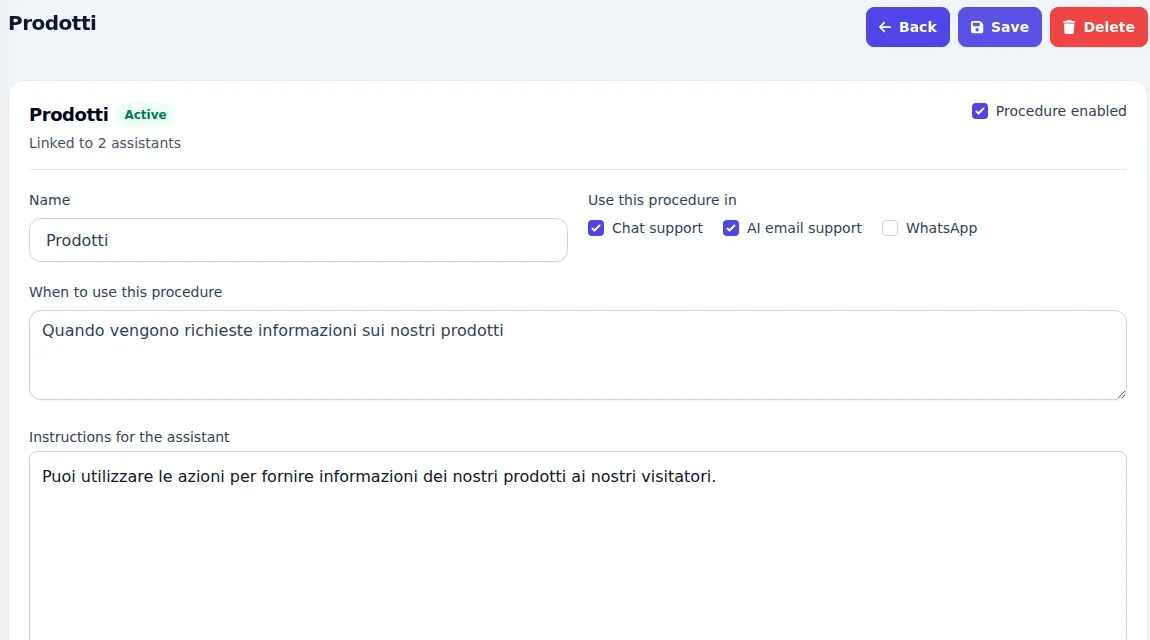
Example instruction
“For returns questions, consult the approved policy. Ask for the purchase date if it is missing. If the customer requests an exception, involve the team without promising an outcome.” Adapt this example to your company’s procedures.
Expected result and common issues
- The solution uses the procedure for the intended cases and consults its linked sources.
- The procedure is not selected: clarify its usage description and check that it is enabled for the solution.
- Two procedures overlap: clarify their scope before adding further instructions.
- A request needs an unavailable action: agree the required integration rather than describing an unconnected action as available.