
Test the assistant before activation
Use Try chat or Try email to check answers, missing information and team handover.
Prepare test cases
Collect real questions and expected results checked by your company contact. Include a simple question, an incomplete one, an out-of-scope request and a case that must go to the team. Use demonstration data and a solution prepared for testing.
Run a preview
- Open Solutions and select Configure for the channel to check.
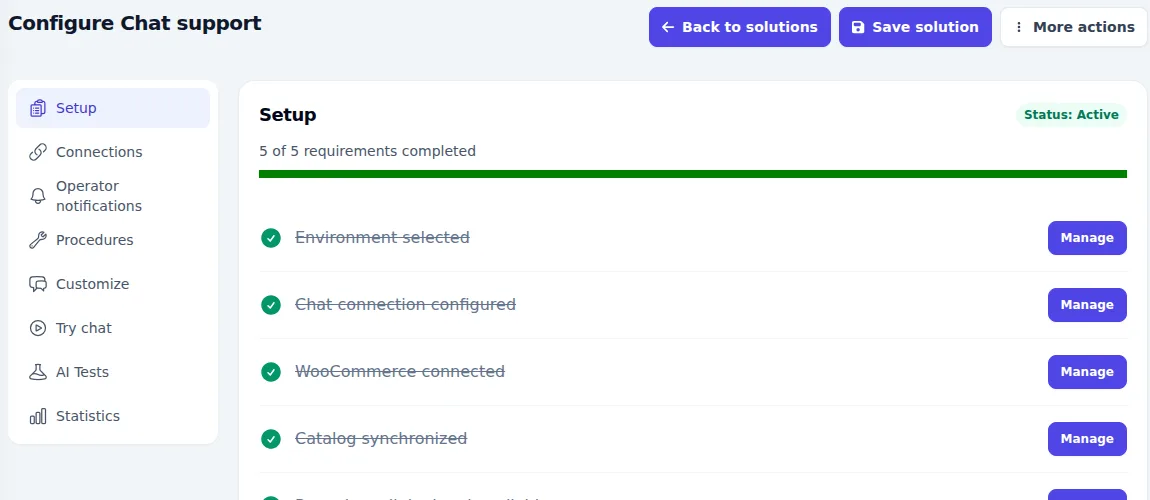
- Make sure changes are saved and Setup requirements are complete. Preview availability depends on the solution’s status.
- Open Try chat or Try email, depending on the channel.
- Enter a question and compare the answer with the approved source. Check content, tone and requested information.
- Repeat with incomplete, out-of-scope and handover cases. Record the question, actual answer and expected result.
- Correct sources or procedures and repeat affected cases. Agree activation on the live channel only after review.
What to check
- The assistant uses source information without inventing policies or availability.
- It asks for missing data instead of assuming important details.
- It recognises procedure boundaries and involves the team when required.
- The actual website or inbox connection is also checked with an end-to-end channel test.
A successful test does not guarantee every future answer will be correct. AI tests may use service resources: check the conditions for your setup. The AI Tests section, if enabled, provides additional structured checks.
If the preview is unavailable
Check saved changes, solution status, connections and procedures in Setup. If customers already use the solution, do not change its status just to open a preview; agree a testing environment with your contact.