
Connect an email inbox
Choose the connection method with your contact and check receipt, replies and human handling.
What you need
A company inbox, permission to configure it and a dashboard role with the necessary access. IMAP and SMTP require your provider’s settings and supported sign-in method. Share credentials only through the channel agreed for installation.
Choose a connection method
- Forwarding: your inbox forwards messages to the dedicated address shown by TameSupport after saving the configuration.
- IMAP and SMTP: IMAP receives messages; SMTP sends them. Use the authorised inbox’s settings.
Check the configuration
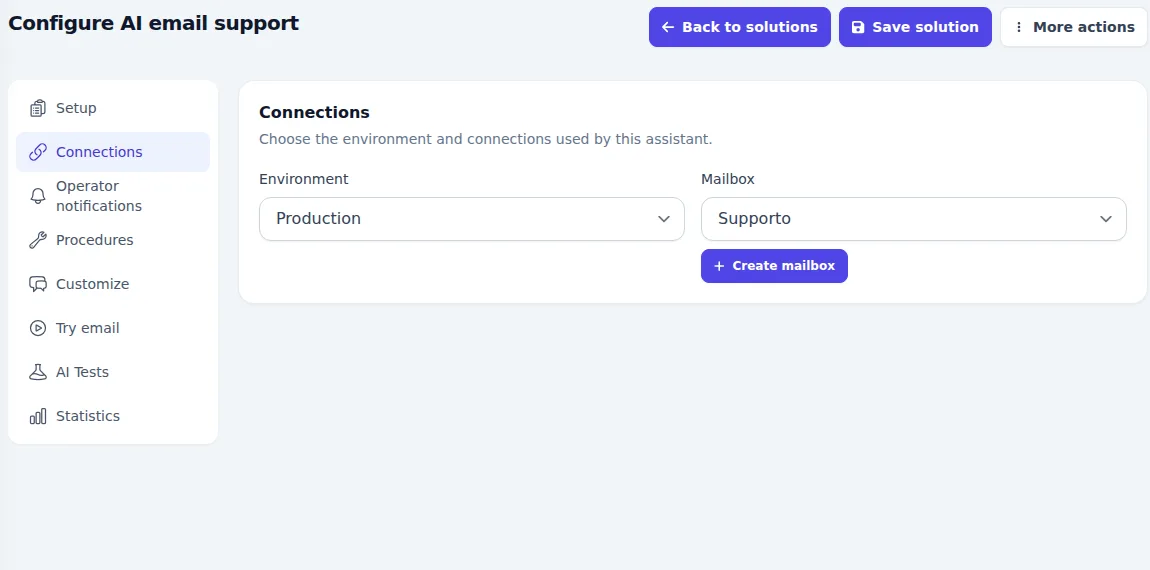
- In Solutions, open your email support solution and the Connections section.
- Check the linked connection and inbox. Complete the chosen method’s settings with your installation contact.
- For forwarding, configure the rule in your email service using the dedicated address obtained in the dashboard.
- Check the procedures, manual or AI handling mode, and reply settings available in Customize.
- Send a recognisable test request from an external address and check that it appears in Conversations.
- Also check the reply path and operator involvement according to the agreed handling mode.
Expected result and common issues
- The test message appears in the right channel and follows the selected handling mode.
- No message arrives: check forwarding or IMAP access, folders and provider settings with your contact.
- Messages arrive but cannot be sent: check outgoing settings and any reported errors.
- The team receives duplicates: check forwarding rules and other systems replying from the same inbox before enabling AI.
Connecting an inbox does not mean every email will be sent automatically by AI. Behaviour depends on the solution’s configuration and agreed procedures.