
Add your company information
Prepare your sources, upload them to the Knowledge Base and make them available to the right procedures.
Before uploading content
Your role must allow you to manage the Knowledge Base and procedures, with a connected Drive available for the project. If the Drive is not connected, ask your installation contact to complete that step. Collect approved, current information: opening hours, services, policies, returns and frequently asked questions. Avoid conflicting versions of the same document.
Upload and link sources
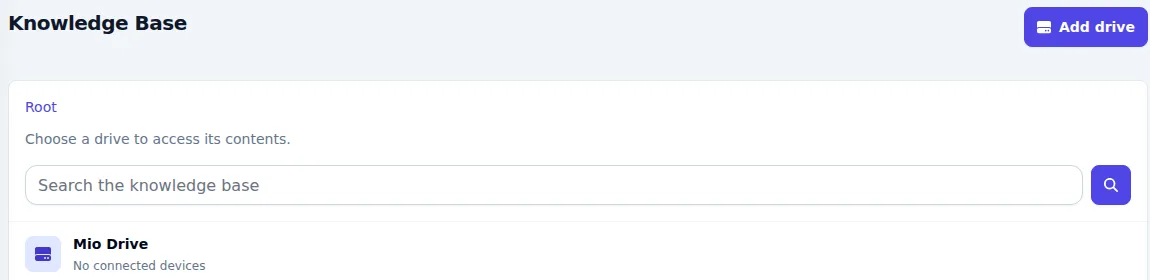
- Open Knowledge Base and select the project’s Drive.
- Organise content with New folder. Use Upload for documents such as PDF, DOCX, TXT or Markdown, or New file for a short text.
- Check the processing result. A file appearing in the list is not necessarily ready for consultation.
- Open the relevant procedure and select its files or folders in Knowledge Base sources.
- Save the procedure and test a question whose answer appears in the new source.
Information on your website
If enabled for your setup, add a web source and specify the pages to consult. Check that they are accessible and contain the relevant text. Review the source’s settings for update frequency and limits; do not assume the entire website is imported automatically.
Uploading a source does not make it available to every answer. Each procedure can consult only the sources selected for that procedure.
Expected result and common issues
- The source is ready and included in the procedure’s available sources.
- A document is not processed: check its format, readability and displayed status. Scanned PDFs may need additional checking.
- An answer ignores the content: check the procedure link, document version and relevance of the question.
- Information has changed: update the source, wait for processing and repeat your tests.